Assignments and GitHub
Your course repository on GitHub
Within this course, you will submit your individual solutions to one personal GitHub-hosted learning log created through Classroom 50. You will use this course repository for all assignments, even if you have other GitHub repositories.
Find both invitation links in ILIAS and follow the two Classroom 50 setup steps. Your instructors must add you to the course roster before the links will let you join. Accept the invitation to GeoMOER-Students-Space, then accept the course repository assignment. Classroom 50 provides the repository link under My submission. Your course repository will be hosted in GeoMOER-Students-Space on GitHub. Submissions generally include the R script or R Markdown source AND the generated HTML files. For details see the Deliverables section.
If you do not yet have a GitHub account, create one before following the setup steps above. Keep the same learning log repository until the end of the course. Please also add your full name or your student account name to your GitHub profile.
Aside from submitting assignments, you should use your repository for everything related to this course which is potentially subject to version control, team collaboration and issue tracking.
Now it’s time to write your first R code in an R Markdown document.
How to connect RStudio with GitHub
Work through the R and RStudio introduction and the RStudio version control guide. Before cloning a repository in RStudio, install Git and make sure RStudio can find it. GitHub Desktop is an optional graphical client.
- In RStudio, choose File → New Project.
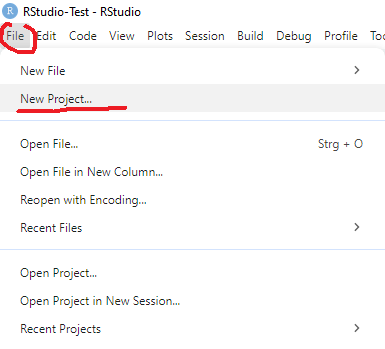
- Choose Version Control to create a project from an existing repository.

- Choose Git.

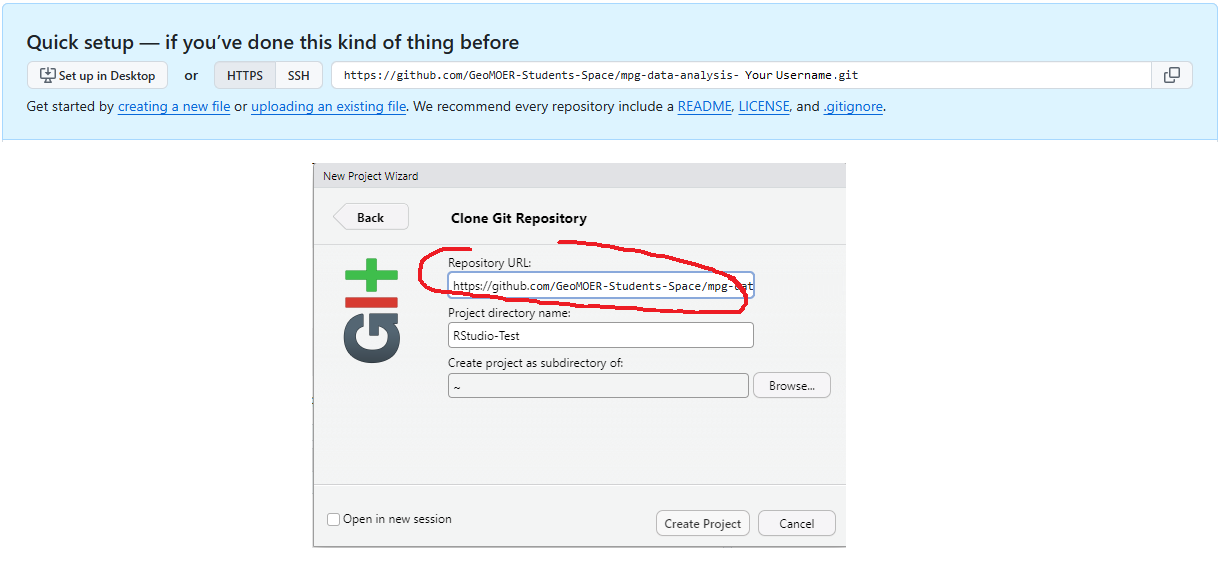
- Open your repository on GitHub from My submission in Classroom 50. Copy its URL from the Code menu and insert it into the project wizard in RStudio.
-
If prompted, authenticate using the method configured for your repository connection. See GitHub’s authentication documentation for guidance.
-
Create an R Markdown document (
.Rmd) beside the project’s.Rprojfile and knit it to HTML. The shared project layout explains the folders introduced as the course progresses. -
To record your changes locally, open the Git menu and choose Commit.
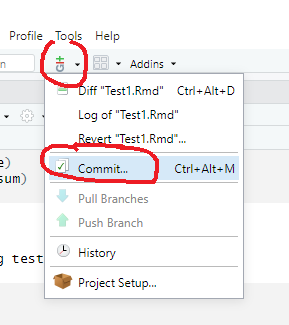
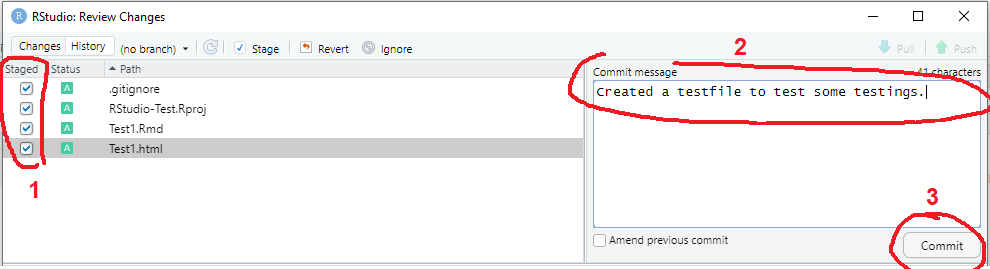
- In the commit window, select (stage) the files you want to include, such as your
.Rmdsource and generated HTML file (1). Write a commit message describing your changes (2), then click Commit (3). This saves the changes in your local repository.
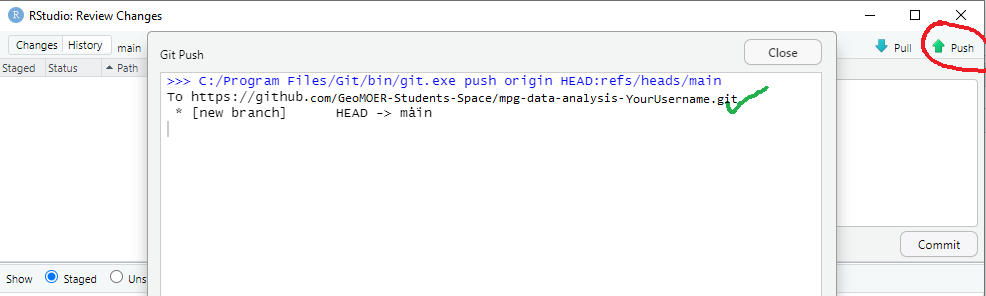
- Click Push to send your committed changes to GitHub. Check the output to confirm that the push succeeded.
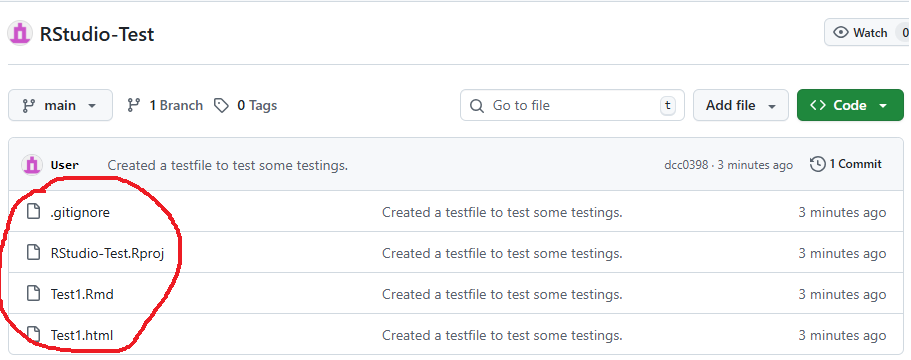
- Open your repository on GitHub and check that both the
.Rmdsource and generated HTML file are present.
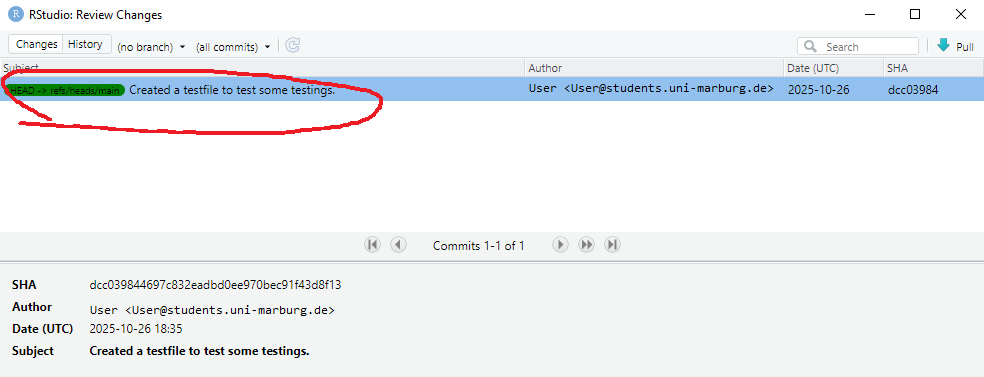
You can review previous commits in RStudio’s Git History window.