
How to assign
general information on assignments and tasks can be found here
The unmarked assignments are primarily for me to evaluate whether anyone is facing difficulties with the course material. I expect everyone to invest time and effort into completing these tasks (as outlined in the expected workload), and all assignments should be submitted by Wednesday in the corresponding Ilias-folder.
You are encouraged to seek help via the internet as you work through the problems. However, if you are unable to find a solution, please document your thought process, any potential errors you encountered, and what you believe the issue might be. Additionally, include any specific questions you have about the code. This will help me understand where you may need further clarification.
Please always add your full name to your assignments, e.g. “A01_Heidrich_Lea”. This makes it easier for the course instructors to match the uploaded assignments to the students. If it can’t be matched, it won’t be considered.
I look forward to seeing your progress!
How to save your assignment
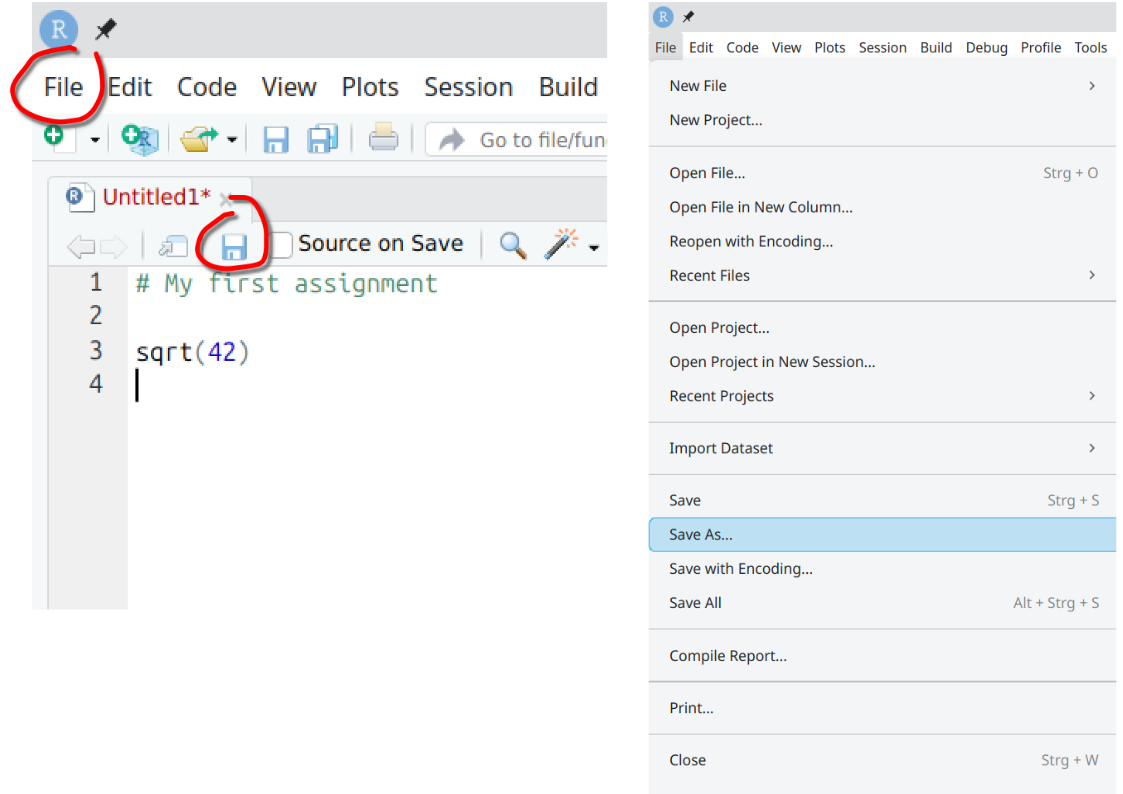
Your assignments should be delivered as an R-Script. To do so, you nee to save it first. Either by klicking the disk symbol right above your script or via the drop-down menu under “File” at the toolbar.
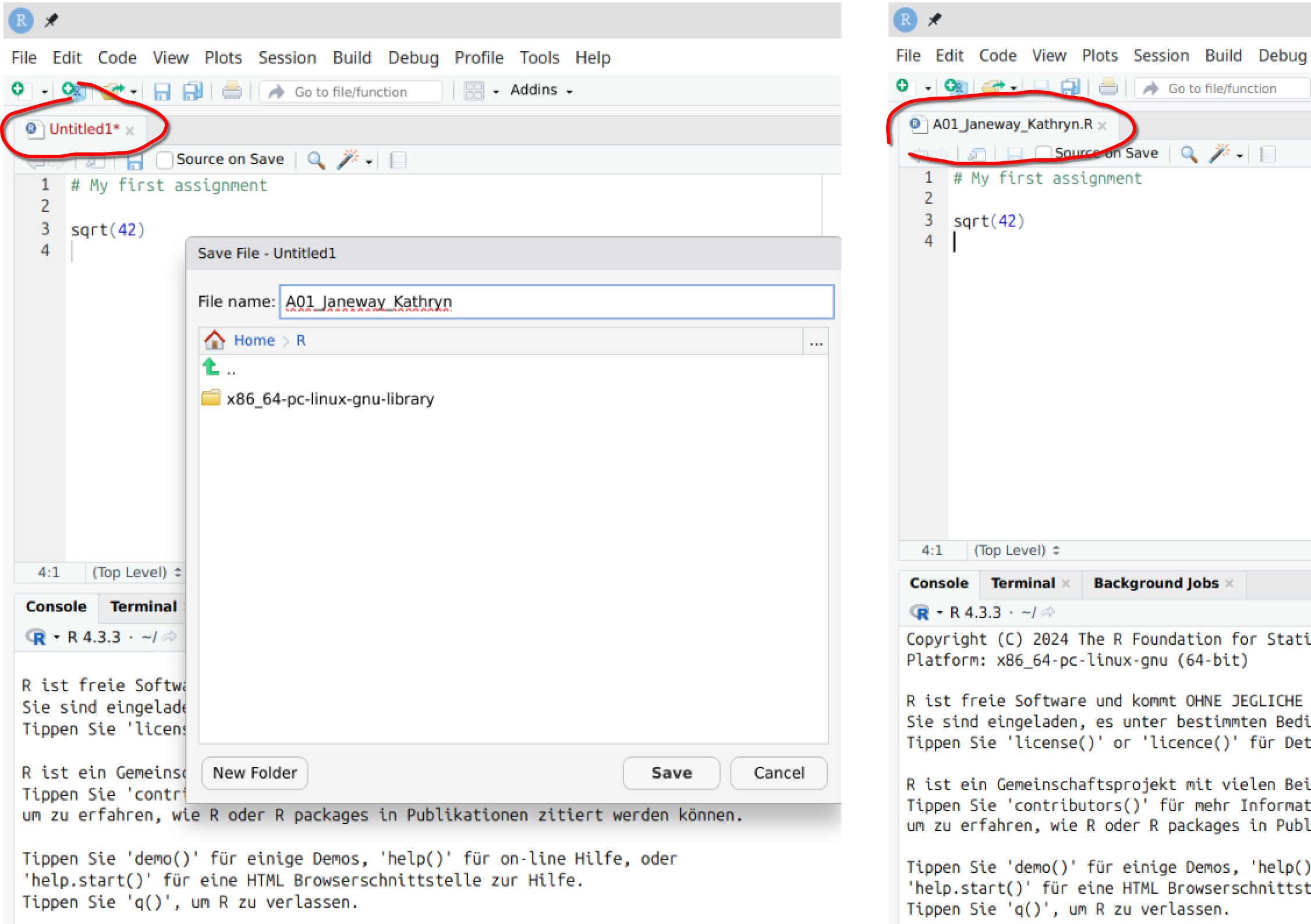
Name your assignment and save it at a preferred folder. Notice that the Script-Name changes from “Untitled1*” to “YourName.R”.
How to upload your assignment
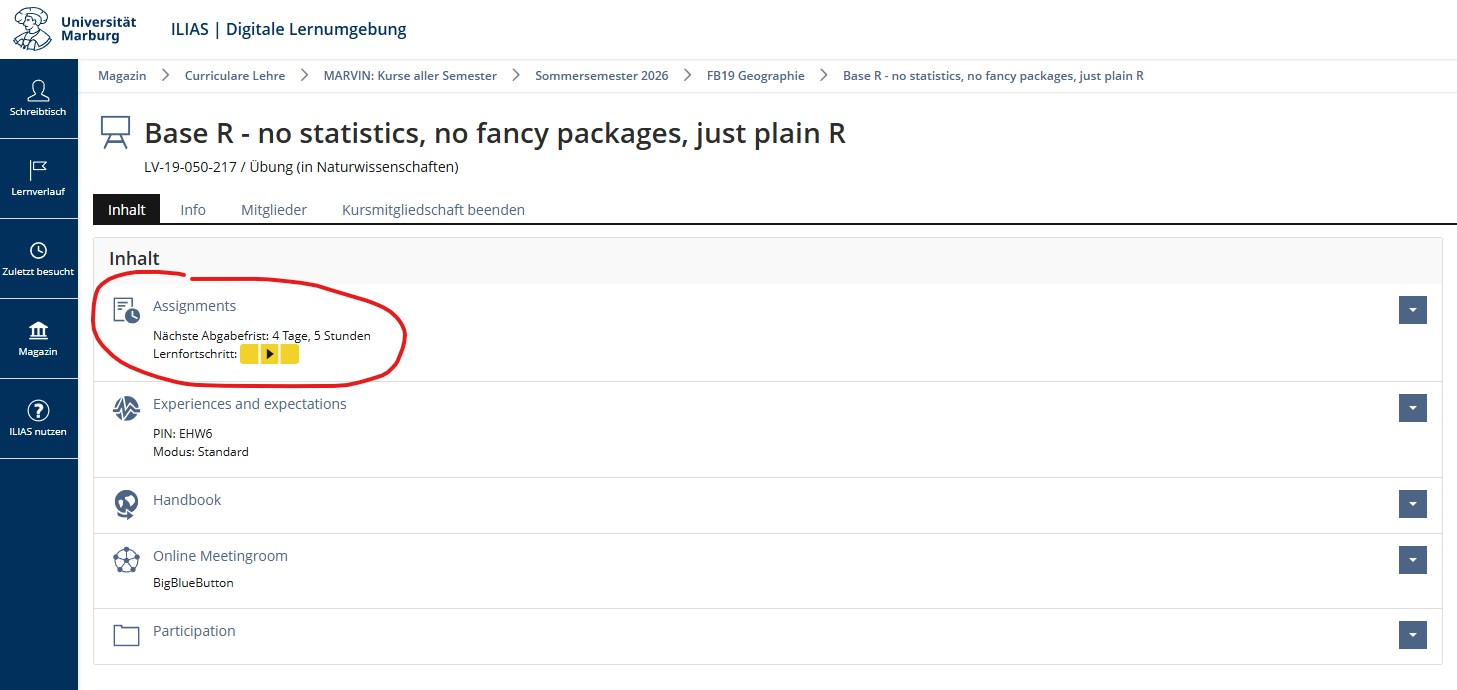
As a student of the University of Marburg, you are supposed to upload your assignments into ILIAS. Do so by opening the “Assignment” module on the course page.
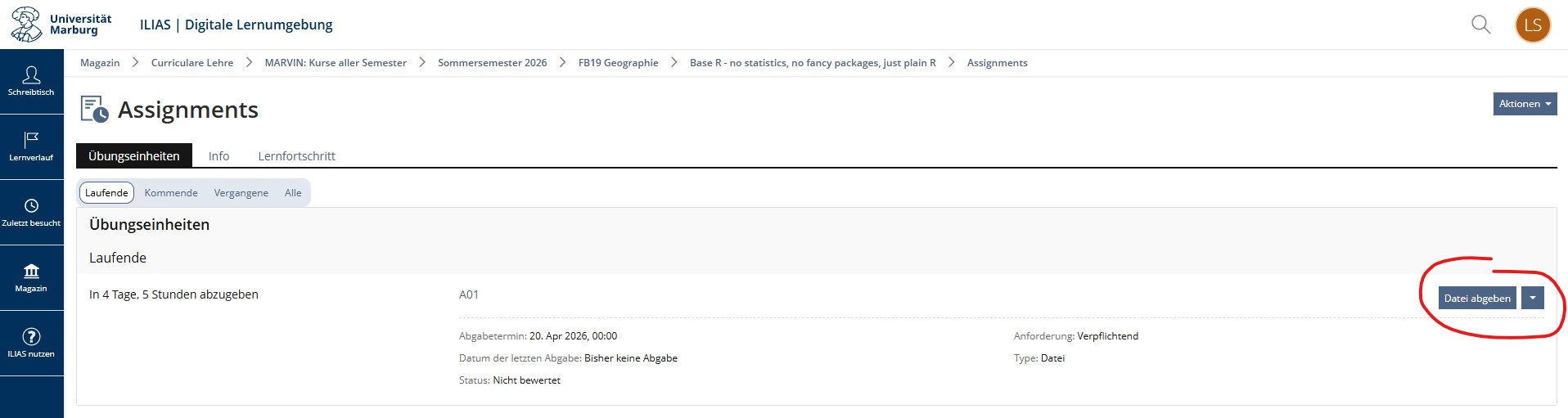
Insight this module use the “Submit file” button.
Now decide whether you want to upload a single file or multiple files at once. “Upload file” lets you select a single file (1), while “Upload multiple files as a ZIP archive” allows you to upload multiple files simultaneously (2).
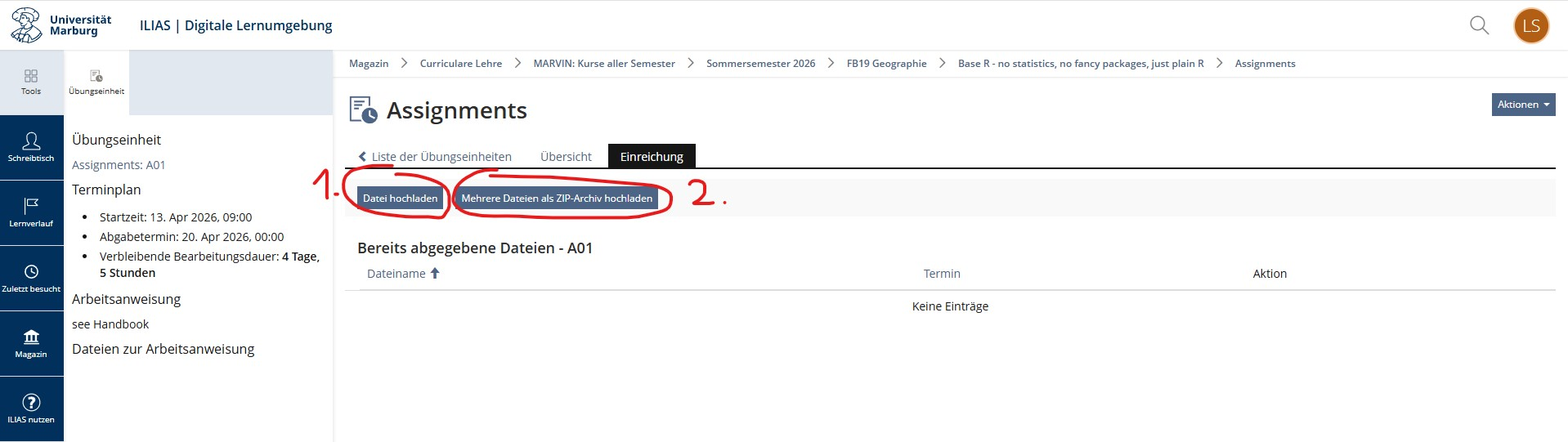
- Single file; 2. multiple files.
1) If you decided to upload a single file, click onto “Select file” to find your assignment R-Script. The scripts name will show above the button. Now klick “Save” on the right hand side.

- Upload; 2. Submit
2) If you decided to upload multiple files at once, select all files via the “Select file” button first and than click “Upload”. ILIAS will combine all selected files into a ZIP archive.
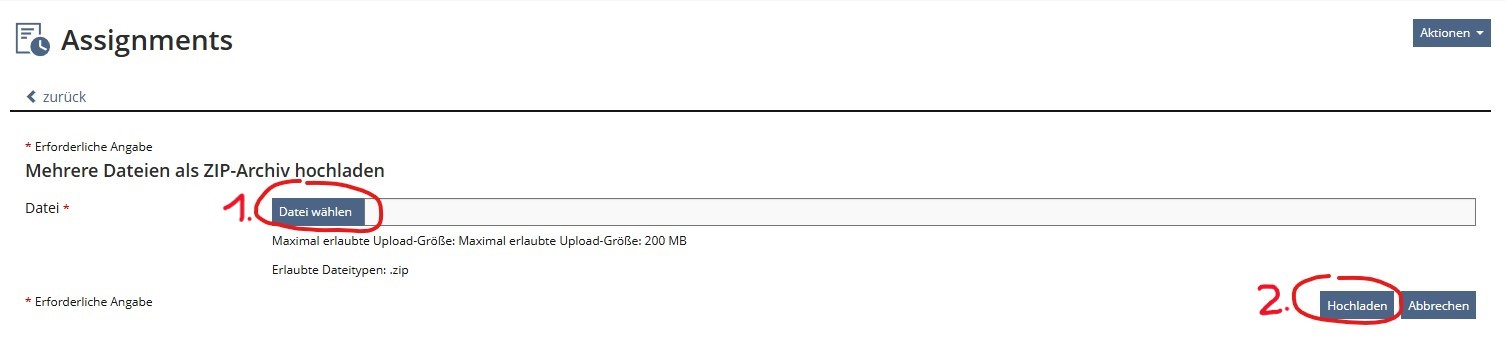
- Select multiple files; 2. Upload into ZIP archive
Congratulations! You have submitted your Assignment.