
User Interface
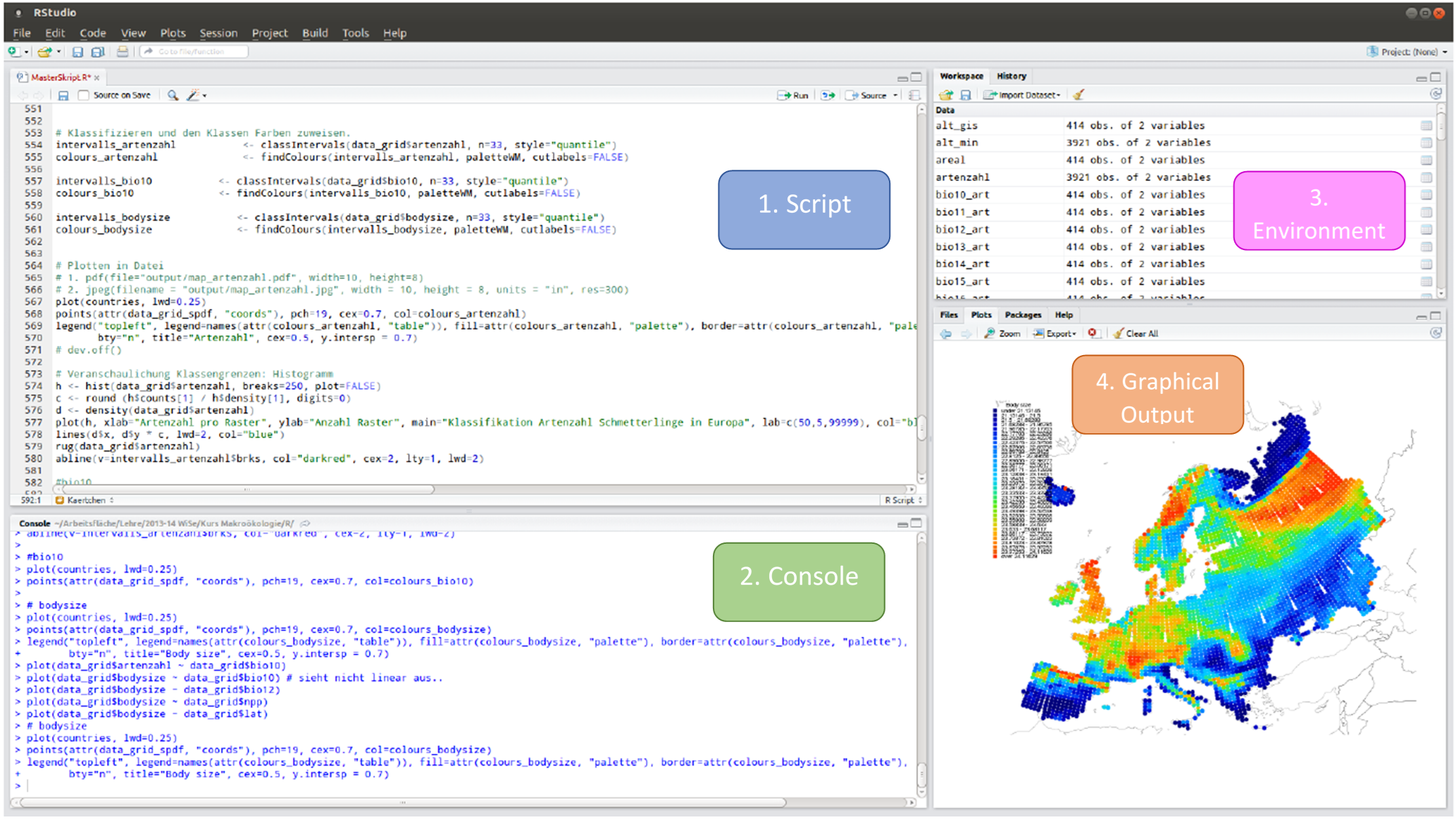
This is the Integrated Development Environment (IDE). It contains
- a syntax-highlighting text editor (1. Script) - this is where you write your code. R scripts are collections of R commands that can be saved and executed later. The script editor provides features such as syntax highlighting, code autocompletion, and code folding to help you write code more efficiently. When you’ve finished writing your command - or the whiole script - you can run the script, and the code get’s transferred to the console.
- a console to execute code (2. Console), - this is where the output from executed commands, results and errors etc. are displayed. The console allows for immediate execution of R commands, making it useful for quick calculations, testing code snippets, or exploring data interactively. However, code entered directly into the console is not saved as a script file, so it’s generally recommended to use the script editor for more complex or structured code that you want to save and reuse later.
- a workspace and history management (3. Environment), - this is where stored variables, dataframes etc. are shown. This pane also displays information about the objects, so you can see the names, types, and values of these objects, as well as their dimensions if they are data structures like vectors or data frames.
- tools for plotting and exporting images (4. Graphical Output) but also browsing the workspace, managing packages and information about the help functions within RStudio.